

Installing an APK outside the Google Play Store can feel confusing the first time. You download the file, tap it, and suddenly Android stops you with a message about security or an unknown source. At that point, many users wonder, “Did I download the wrong file, or is my phone blocking it?”
In most cases, Android is simply doing what it was designed to do: protecting your device from applications installed outside its usual app store.
I researched the current Android installation process and found one important detail that often causes confusion: the exact steps depend on your Android version and phone manufacturer. On modern Android versions, you generally give permission to a specific app—such as Chrome or a file manager—to install APK files rather than switching on one universal “Unknown Sources” option. Android’s own documentation explains that apps installed outside Google Play can increase security risks, which is why these controls exist.
In this guide, I’ll walk through the process in simple language, explain what “unknown sources” really means, and show you what to do if the Castle App APK still refuses to install.
What Does “Unknown Sources” Mean on Android?
Before changing anything, it helps to understand the terminology.
An APK (Android Package Kit) is a package file used to install an Android application. When you download an APK from somewhere other than Google Play, Android treats the source as an alternative or unknown source.
That doesn’t automatically mean the APK is dangerous.
It simply means Android cannot rely on Google Play’s normal distribution process to verify where the application came from.
Google recommends getting apps from Google Play when possible, while also acknowledging that Android supports applications from other sources. Google warns that apps from unknown sources can put your device and personal information at risk.
That’s why I recommend thinking of the setting as a permission, not a security switch that should stay permanently enabled.
Why Android Blocks APK Installation
Imagine Android as the security guard at the entrance of your phone.
If an app arrives through Google Play, Android has an established installation route. But if an APK arrives through your browser, messaging app, cloud storage, or file manager, Android wants to know whether you intentionally allowed that source to install software.
This is especially useful because malicious apps can sometimes disguise themselves as legitimate downloads.
Android’s security documentation specifically warns that harmful apps may try to convince users to change settings that put their personal information at risk.
So if Android displays a warning before installing an APK, don’t immediately treat it as an annoying obstacle. It’s worth checking the file first.
How to Enable Unknown Sources for Castle App APK
The process is relatively simple on modern Android phones.
The most important thing to remember is this:
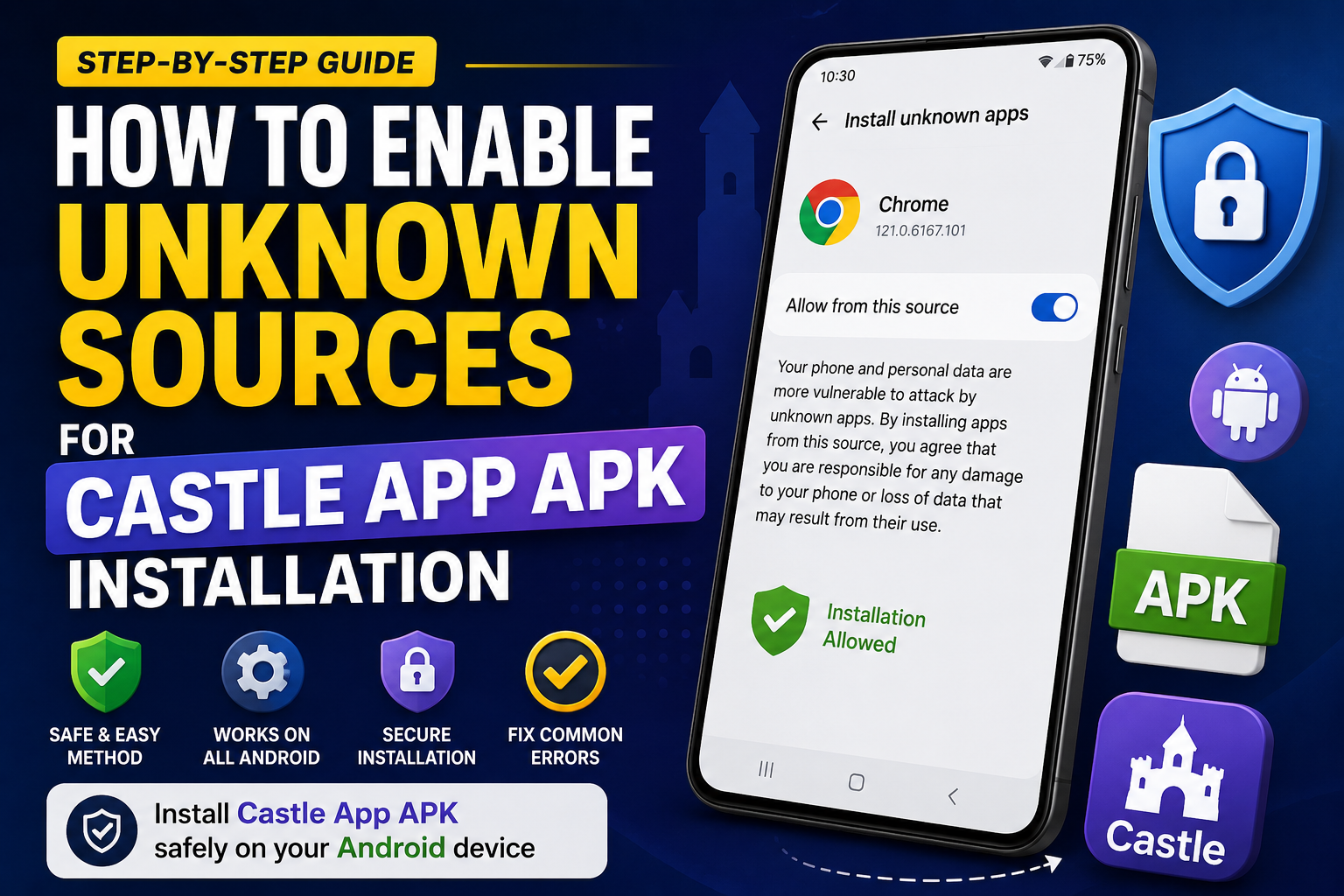
You normally allow the application that opened the APK, not the Castle App itself, to install unknown apps.
For example, if you downloaded the APK using Chrome, Chrome may be the app that needs permission.
Step 1: Download the APK Carefully
First, obtain the Castle App APK from a source you trust.
Before opening it, check:
- The website or source you downloaded it from
- The application name
- The file extension
- The version information
- Whether the download appears complete
- Whether the source provides information about the developer
Avoid APK files advertised as “premium unlocked,” “cracked,” or modified unless you completely understand their origin and risks.
A free APK isn’t automatically a safe APK.
Step 2: Open Android Settings
Open the Settings application on your Android phone.
Because Android interfaces vary between manufacturers, your menu names may not look exactly like the examples in this guide.
Look for Apps, Applications, or a similar option.
Step 3: Find “Install Unknown Apps”
On many Android 8.0 and newer devices, the relevant setting is found under:
Settings → Apps → Special app access → Install unknown apps
Google’s Pixel documentation uses this general path and allows users to choose which application can install apps from other sources.
You may also find the setting through your phone’s Settings search bar.
Try searching for:
Install unknown apps
This is often the fastest method.
Step 4: Choose the App You Used to Download the APK
This step is easy to overlook.
Suppose you downloaded the Castle App APK through Google Chrome.
You may need to select:
Chrome → Allow from this source
If you downloaded the APK through a file manager, you may instead need to select that file manager.
In other words, don’t search for a setting specifically called “Castle App unknown sources.”
You’re giving permission to the source application that is attempting to install the APK.
Step 5: Turn On “Allow From This Source”
Once you’ve selected the relevant application, look for an option such as:
Allow from this source
Turn it on only if you trust the APK and the source from which you obtained it.
Then return to your downloaded APK and tap it again.
Android should now allow the installation process to continue, assuming the APK itself is compatible and valid.
What If You Have an Older Android Phone?
This is where many online APK guides become confusing because they describe an older Android interface as if it applies to every phone.
It doesn’t.
Android 8.0 introduced a different approach in which users grant installation permission to individual sources. Android’s developer documentation says Android 8.0 and higher uses the Install Unknown Apps setting for specific sources, while Android 7.1.1 and earlier used the broader Unknown Sources security setting.
On an older Android device, you may see something similar to:
Settings → Security → Unknown Sources
You can then enable the relevant option before attempting the installation.
The exact wording can vary depending on the manufacturer and Android version
How to Enable APK Installation on Samsung Phones
Samsung’s One UI may organize the setting slightly differently from stock Android.
A common route is:
Settings → Security and Privacy → More security settings → Install unknown apps
From there, choose the application that downloaded or opened the APK and allow installation from that source.
If you can’t find the menu, use the Settings search function and type:
Install unknown apps
That’s usually faster than opening every security submenu.
What About Xiaomi, Redmi, Motorola, OPPO, or Other Phones?
Different manufacturers customize Android.
You may therefore see different names for the same feature.
For example, the setting may appear under:
- Apps
- Special app access
- Security
- Privacy
- Additional settings
- Install unknown apps
Rather than following a guide written specifically for another phone, I recommend using your device’s Settings search.
Search for:
Unknown apps
or
Install unknown apps
This simple trick can save several minutes of menu hunting.
My Experience Troubleshooting APK Installation
When I researched this process, one thing stood out: users often assume that enabling unknown sources automatically fixes every APK installation problem.
It doesn’t.
Imagine you enable the permission, return to the APK, and Android still says:
“App not installed.”
At first, it might seem like the setting didn’t work.
But the permission only allows Android to attempt the installation. It doesn’t guarantee that the APK is compatible with your device.
That’s an important distinction.
If permission is enabled and installation still fails, I would move on to troubleshooting the APK itself.
Castle App APK Still Won’t Install? Try These Fixes
1. Check Your Android Version
The APK may require a newer Android version than the one installed on your phone.
Check:
Settings → About phone → Android version
Then compare your Android version with the requirements provided by the legitimate app source.
Compatibility is determined by the app and its supported devices, so changing security settings won’t make an incompatible application compatible. Google also notes that app compatibility can depend on the device and required operating system.
2. Check Your Storage
Running out of storage can cause installation problems.
Even if the APK itself isn’t particularly large, Android may need additional space during installation.
Before trying again, check your available storage and remove unnecessary files if you’re almost full.
3. Download the APK Again
A partially downloaded APK may produce errors such as:
- “There was a problem parsing the package”
- “App not installed”
- Installation failure
Delete the old file and download a fresh copy from a trustworthy source.
Don’t keep trying to install a file that may already be damaged.
4. Check Whether an Older Version Is Installed
An existing version of the application can sometimes interfere with installing another build.
Go to:
Settings → Apps
Search for Castle App and check whether another version is already installed.
Be careful before uninstalling it, especially if you have important application data.
What About Castle App Download Sources?
If you’re searching for a Castle App Download, don’t judge a source purely by how professional its website looks.
A page can have a polished design and still provide an unsafe file.
Before downloading, look for:
- Clear developer information
- A trustworthy distribution source
- Version details
- Installation requirements
- Transparent update information
- No aggressive pop-ups or suspicious redirects
Google recommends checking the reliability of apps and using trusted sources whenever possible.
If something feels suspicious, stop before installing it.
A five-minute search is much better than spending an afternoon trying to clean a compromised phone.
Should You Use Castle App Previous Versions?
Sometimes users search for Castle App Previous Versions because the newest APK doesn’t work properly on their device.
There can be legitimate reasons for this.
For example, an older release may support an Android version that a newer release no longer supports.
However, older versions come with trade-offs.
They may contain:
- Older security fixes
- Bugs that were corrected later
- Compatibility problems
- Outdated dependencies
- Features that no longer work correctly
So I wouldn’t automatically recommend installing an older version simply because it’s available.
First determine whether your problem is caused by Android compatibility, a corrupted APK, insufficient storage, or an installation conflict.
If you genuinely need an earlier version, use a reputable source and verify exactly what you’re installing.
Don’t Turn Off Security Just to Install an APK
This is probably the most important lesson in the entire guide.
If an APK refuses to install, don’t start disabling every security feature on your phone.
Google Play Protect is designed to check potentially harmful applications, warn users, and take action when necessary.
Android also warns users about restricted settings because some harmful applications try to persuade people to make risky changes.
If an APK repeatedly triggers serious security warnings, take those warnings seriously.
Ask yourself:
Do I trust this file enough to install it?
If the answer is no, don’t proceed.
A Simple Checklist Before Installing Castle App APK
Before tapping Install, I recommend checking these points:
- Is the APK from a trustworthy source?
- Does the APK match your Android version?
- Do you have enough storage?
- Is the file actually an APK?
- Did the download finish completely?
- Have you allowed installation from the correct source app?
- Is another version of the application already installed?
- Is Android showing a security warning?
- Does the application request unusual permissions?
If all nine look reasonable, you’re in a much better position to proceed.
Android’s Newer Approach to App Verification
There’s another reason current APK guides need to be kept up to date.
Android is continuing to develop its developer verification and sideloading protections. In 2026, Google has described an advanced flow for users who intentionally want to install apps from unverified developers, adding safeguards rather than simply encouraging people to disable security protections.
This means APK installation may not look exactly the same on every future Android device.
So if your phone displays an additional warning or verification step, don’t assume something has gone wrong.
Read the message carefully and confirm that you’re intentionally installing the application.
Frequently Asked Questions
Can I install Castle App APK without enabling unknown sources?
If you’re installing an APK from outside Google Play, Android may require permission for the source application that is opening the file. On newer Android versions, this is generally managed through Install unknown apps rather than one universal switch.
Is enabling unknown sources dangerous?
The setting itself isn’t necessarily dangerous, but installing an untrusted application can be. Google warns that apps from unknown sources can put your device and personal information at risk.
Only allow installation from a source you trust, and avoid suspicious or modified APK files.
Why can’t I find “Unknown Sources” in Settings?
If you’re using Android 8.0 or newer, you may not see the old “Unknown Sources” option.
Instead, look for:
Settings → Apps → Special app access → Install unknown apps
The exact location can vary by manufacturer.
Why does the APK still say “App not installed”?
Enabling unknown-app installation only gives the source permission to install an APK.
The file can still fail because of:
- Android compatibility
- Corrupted downloads
- Insufficient storage
- Conflicting versions
- Unsupported device architecture
- Invalid package files
So if the permission is already enabled, investigate those possibilities instead of repeatedly changing the security setting.
Should I keep “Allow from this source” enabled?
If you don’t regularly install APKs from that source, there is little reason to leave the permission enabled indefinitely.
After installation, you can return to the same setting and turn Allow from this source off.
That gives you another layer of protection against accidental installations later.
Final Thoughts
Enabling unknown sources for Castle App APK installation isn’t particularly difficult once you understand what Android is actually asking you to do.
The biggest change from older Android versions is that modern Android usually treats unknown-app installation as a permission for a particular source, such as Chrome or a file manager. That design gives users more control over which applications are allowed to start APK installations.
In my experience researching APK installation issues, the biggest mistake is treating the security setting as the only solution. If an APK still won’t install after you allow the correct source, check compatibility, storage, the APK’s integrity, and whether another version is already installed.
Most importantly, don’t rush through Android’s warnings. A few extra seconds spent checking the APK source can save you much bigger problems later.
Enable the permission only when needed, use a trustworthy APK source, keep Android security features active, and troubleshoot the actual cause when installation fails. That’s the safer and smarter way to sideload Android applications.